
Client Support
Support & Incident Escalation
BridgeWise Support & Escalation Guide
How to reach BridgeWise support, submit standard tickets, and escalate critical production incidents for immediate 24/7 response.
1 Overview
BridgeWise ensures responsive support for all client-facing services. This guide explains how to contact support and how to escalate critical production issues when immediate response is required.
Use the escalation route only for production outages or severe client-facing impact. Standard questions or non-blocking issues should be submitted as regular tickets.
2 Contact Information
✉️ support@bridgewise.com |
? Support Portal |
3 Support Availability
4 Issue Severity Levels & SLA Commitments PRODUCTION ONLY
SLA targets apply to production incidents. Severity is determined by business impact and service availability.
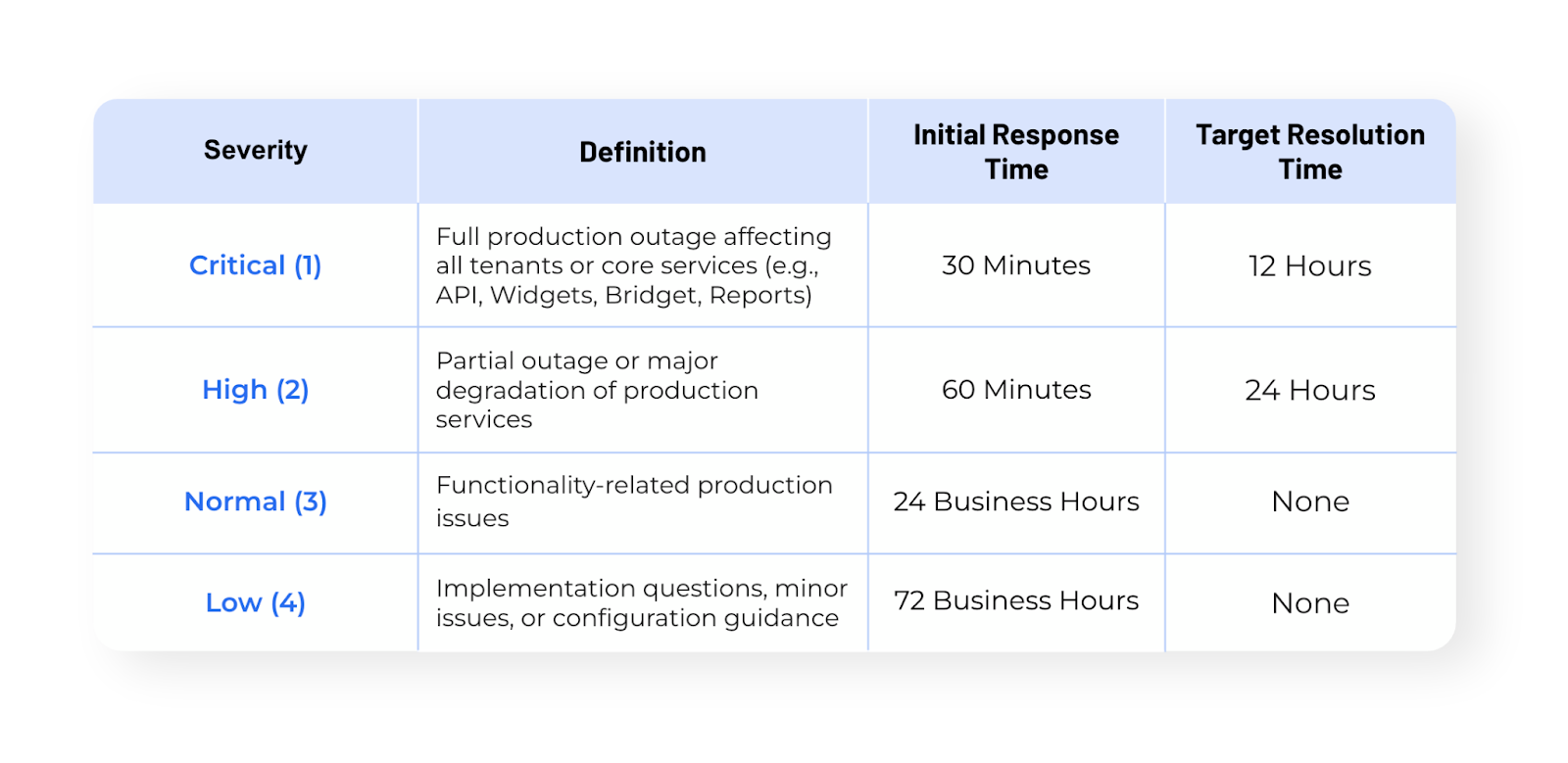
When in doubt, describe the impact (who is affected, what is blocked, and what’s the business risk). We can always adjust severity after triage.
5 How to Submit a Standard Issue
For issues that are not production-blocking, contact BridgeWise support via email or the support portal.
Please include:
Short summary
What’s happening, and since when.
Impacted service(s)
API / Widget / Application (and relevant endpoints/pages if known).
Evidence
Screenshots, logs, request IDs, and steps to reproduce (if applicable).
Business impact
Who is impacted and what is blocked (trading, onboarding, customer access, etc.).
6 How to Submit a Critical Issue
For production outages or severe client-facing impact, use one of the escalation routes below to ensure immediate routing to our 24/7 incident response.
Send an email to support@bridgewise.com with the subject containing: [Critical Issue]
When submitting a ticket via the portal, select the following options to trigger escalation:
Step 1 screenshot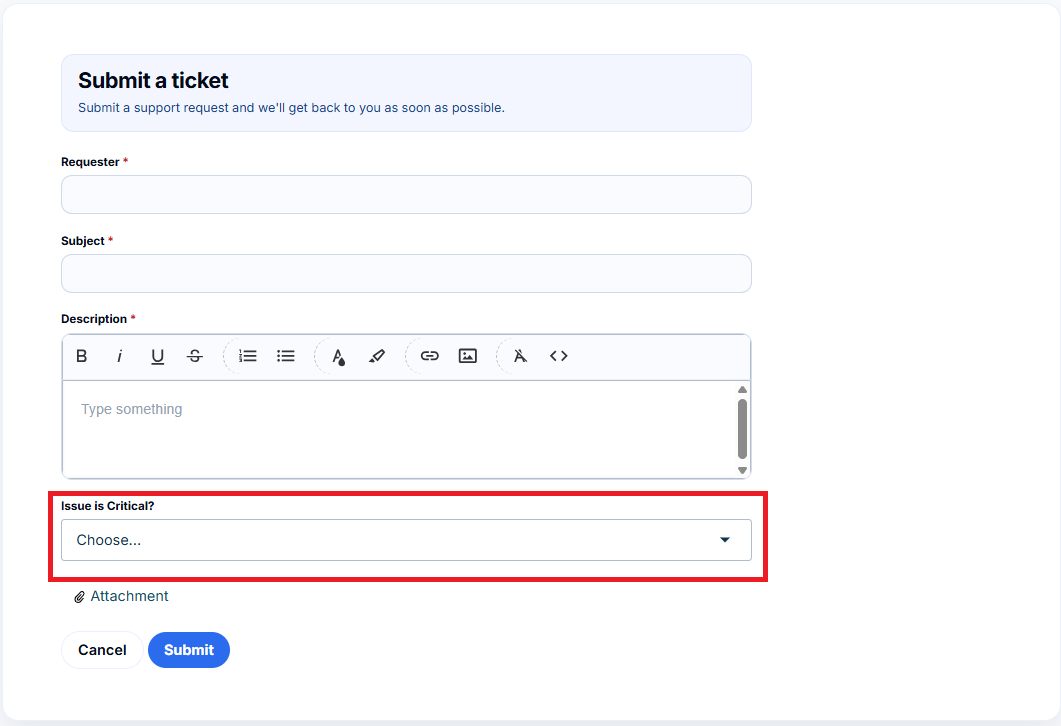
Step 2 screenshot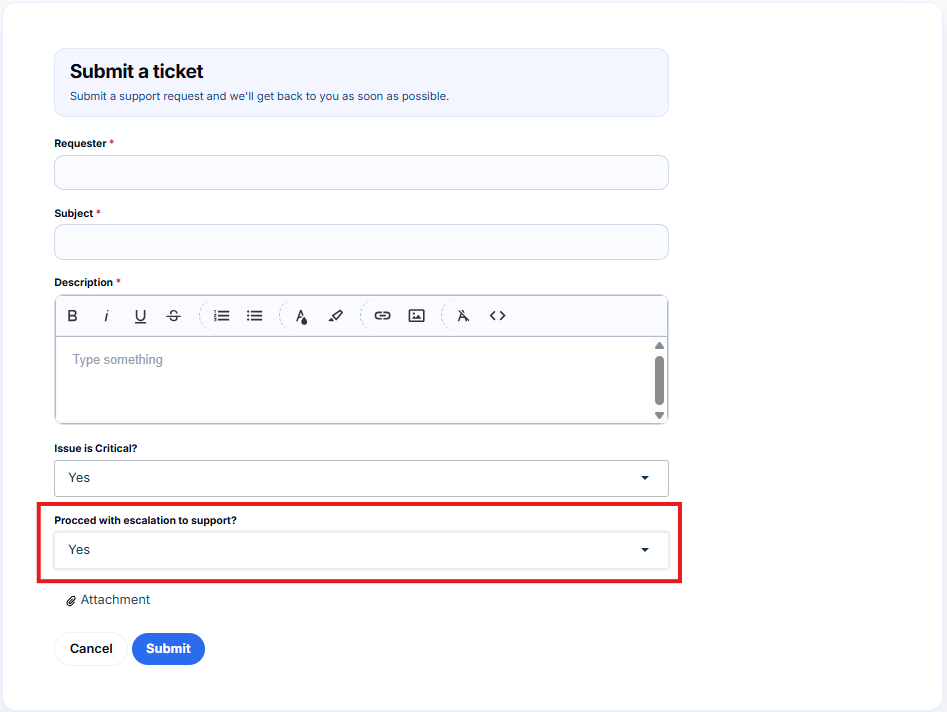
These fields ensure your issue is flagged to our 24/7 incident response system for immediate triage and updates.
7 Best Practices for Efficient Support
Match severity to impact
Clearly define the impact (scope, users affected, and what is blocked).
Attach evidence
Provide steps to reproduce and add screenshots/logs/request IDs whenever possible.
Use the portal for visibility
Submitting via the portal improves tracking and ensures you can follow progress.
Reminder: Escalate only when the issue impacts production or service availability.